

Your bus-trip organiser sent a link to accommodation confirmation. You saw the document at home, but before border checks the screen says “You need access”. People in the chat suggest asking for the organiser’s password or making the whole folder public. Both solutions exceed your need: you require a specific current document, not access to another person’s account or every passenger’s archive.
First separate three things: a file link, permission to view it and your own copy on the device. Having an address in a message does not mean the file is saved on your device. This guide helps clarify a technical failure and obtain the required material privately. It does not determine which evidence the border service must accept in your particular situation.
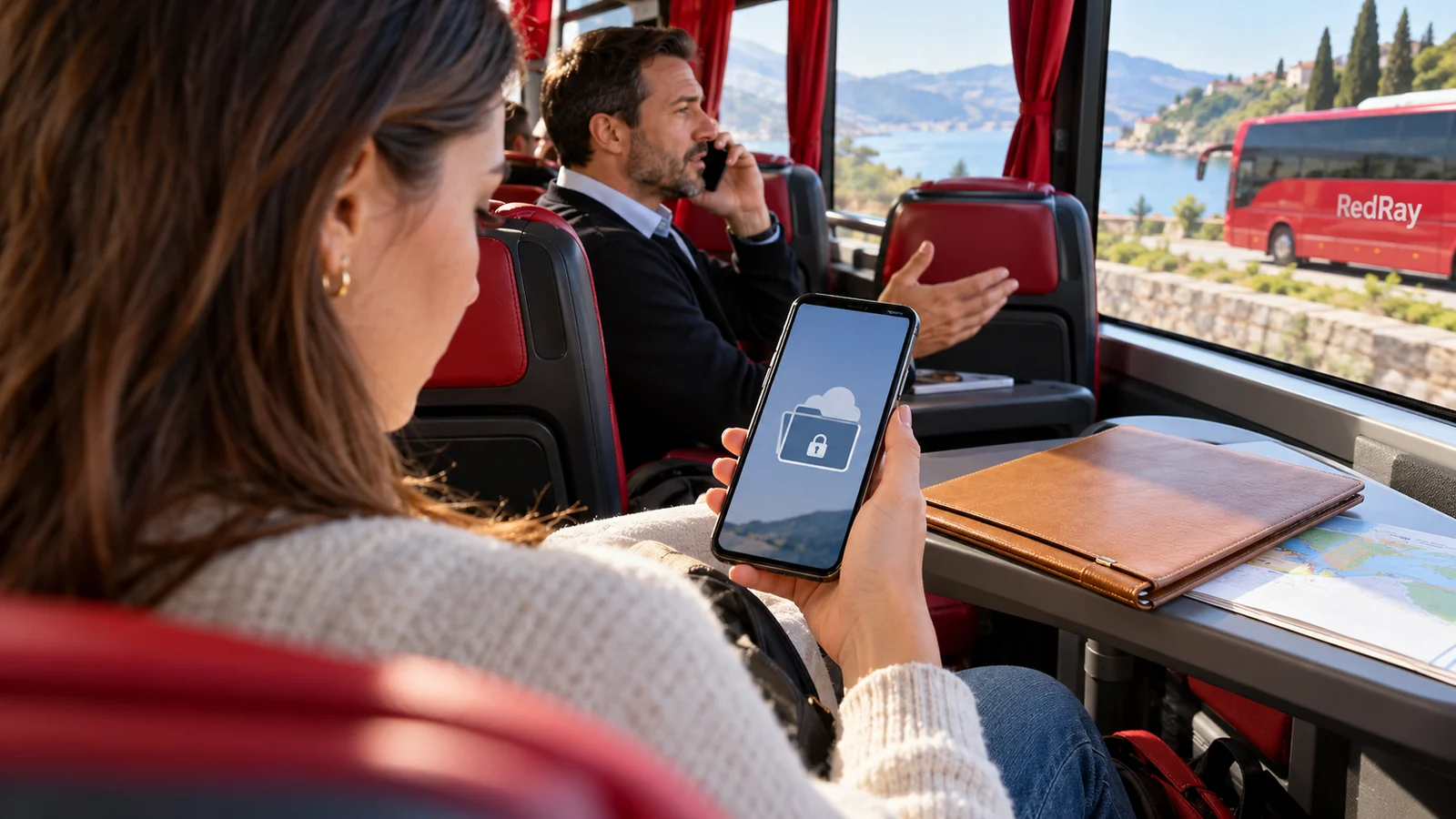
Identify the document and what appears instead
Clarify what you are trying to open: your ticket, accommodation confirmation, invitation or group plan. “None of the documents work” makes assistance harder when only one file is blocked. Note its name and the error’s brief contents without publishing a personal page. If the system shows an owner’s name or recipient account, share those details only with the appropriate person.
A permission-request screen differs from a no-internet or damaged-file message. Do not promise yourself that a new SIM card will resolve access rights. Equally, do not declare a document deleted merely because you cannot see it now. Before changing settings, establish which stage failed: opening the page, signing into the service or viewing the material.
If the information concerns several people, check your own inclusion in the document. Access to a shared folder does not prove a particular booking is in your name or matches the actual date. Restored technical access may reveal an old file. Check contents, relevance to you and currency after opening rather than treating them as automatic consequences of a successful login.
Check the address and your own account
Return to the message from the known organiser and check the link’s origin. Do not enter a password on a new page merely because it resembles familiar cloud storage. If the address or request is unclear, open the service yourself and check the document through its known interface, or clarify the address with the owner. Do not use a phone number in a suspicious window as the only verification of that window.
One phone may hold personal and work accounts. Google’s guidance explains that a restricted file may be shared with a specific account. Check which account of yours is open and which address received permission. Do not randomly switch to someone else’s profile, ask for their password or try to bypass restrictions. If the required personal login is unavailable, tell the owner.
The “Request access” button does not mean permission has been granted. Under the service’s rules, the owner may receive a request containing account details. Before sending it, check who owns the file and which address you are disclosing. If the owner does not reply, repeated clicking will not create a new document or guarantee a faster decision.
Ask for one file for a specific person
Write briefly to the owner: “We need confirmation of this accommodation for our bus journey. The link requests permission for my account. Please check access or send a proper copy privately.” Give the date and relevant passenger details sufficient to locate it. Do not attach a passport to the first message merely to explain a technical error.
Do not ask for the entire archive to be available to anyone with the link. The folder may contain documents from other families or previous trips. The owner should determine an appropriate way to send exactly what is needed. Viewing, editing and further sharing are different permissions. Reading a confirmation does not require the right to change its contents or manage the whole folder.
Do not infer permission to download or print simply from being able to open it. Service conditions and the owner’s decisions may differ. If view-only access prevents preparing the required format, explain the practical need. Do not use a random program promising to “remove the restriction” or copy material without proper permission.
Check the received copy, not only the email
After a response, open the document itself and check the name, dates, address and other details material to your trip. If several files arrive, name them clearly and separate the current one from old versions. The owner may have resent material for a previous departure. Ask for clarification instead of manually correcting someone else’s document on your phone.
Where proper saving is permitted, check the copy independently of an open tab: close the viewer and try opening the file where you saved it. If it again requires a network or permission, access in the required mode is not yet verified. Do not disable connectivity during an important call or procedure; test in advance at a calm moment.
An offline-access indicator depends on the particular service, device and saving method. Do not transfer computer instructions to a smartphone without checking its official help. The important result is whether the permitted required copy opens on your own device. After signing out or changing apps, you may need to repeat the check rather than rely on an old icon.
If the issue arises during border checks
Explain specifically to the responsible official: another person holds the required confirmation, the link currently prevents viewing and you want to clarify how to provide it properly. Do not present a blank screen as a document or invent missing information. The competent service explains waiting arrangements and acceptable format, not the cloud service or a neighbour in the queue.
Use your phone and move only as permitted. Do not leave independently to seek a signal or the organiser in another hall. If contact with the crew is needed, report that your procedure is ongoing and ask about an available notification method. This helps service organisation, but does not promise the bus will wait indefinitely.
Do not open the whole folder on a random passenger’s phone for one presentation. If help using another device is genuinely needed, discuss an appropriate private method and access limits with responsible parties. Do not give out the organiser’s credentials. After temporarily signing into your own service, separately end the session; returning the device to its owner does not do that by itself.
When the link’s owner is unavailable
Check whether you previously received your own confirmation from a proper source: an attachment, current file or service-provider message. Do not create a new document from memory or substitute another group member’s address. If only part of the information is available, explain that directly. Then ask the competent party what can be done now.
For a ticket, ask the seller about purchase status and resending. For accommodation material, use its verified contact. One organiser is not necessarily authorised to correct every document type. Separate technical-access requests, booking checks and government-procedure requirements: they may involve different recipients and decisions.
Do not buy the same service again solely because a link is blocked. Inability to view does not confirm cancellation of an existing order. First establish its actual status. If the journey requires another plan, separately check consequences for the original purchase rather than expecting an automatic refund because of technical inconvenience.
Check before the next departure
- Everyone knows exactly which personal document they need and who can provide it again.
- Access has been checked through the appropriate personal account, not only on the organiser’s phone.
- The permitted copy has been opened fully and checked against the actual dates.
- The backup does not depend on a public link to the entire group’s documents.
Questions and answers
If a link requests access, has the document been deleted?
Not necessarily. Check the message, address and your own account, and clarify the status with the owner. A permission request, no network and a deleted file are different situations.
Can I ask for the organiser’s password and open the file as them?
Do not give or receive another person’s credentials. Ask for the required material to be provided properly to a specific recipient. One document does not require access to the entire account.
Does the access-request button guarantee the owner will grant it immediately?
No. It is a request, not a result. Check which account sends it and, if necessary, contact the known owner separately rather than distributing the request to everyone in the chat.
Is a file open in a browser already available offline?
Do not assume so. Check permitted saving and reopening on your own device. One tab or a link in browsing history does not prove a usable local copy exists.
Is a current digital copy always enough at the border?
No. This article does not set requirements for a particular procedure. Technical file access and document acceptability are separate questions. Clarify the appropriate set with competent authorities for your circumstances.
Useful reading and official sources
If the ticket itself is missing, read how to recover confirmation from the seller. For an unclear field in an official form, see the separate guide on asking for an explanation without invented answers.
Technical sources: Google on file access and permissions, official guidance on offline Drive files, signing in on another device. Checked on 23 October 2026. A link or permission does not confirm entry rights, a booking’s validity or guaranteed continuation of the service.